
The DDS Transaction Viewer utility (DdsViewer.exe) provides useful DDS device and transaction information.
The DDS Viewer utility is stored in the CygNet\Utilities directory (DdsViewer.exe) on the host server. To start the utility, use Windows Explorer to browse to the directory and double-click the program icon.
Note: You can also set up this utility to be installed and launched (started) via CygNet Client Installer so that the application can be version managed. See Version Management for instructions on how to do this.
For more information, see the subsections below:
Click the following image to see an example DDS Transaction Viewer dialog box:
The following table lists and describes the various properties of the CygNet DDS Viewer utility.
| Property | Description |
|---|---|
|
DDS Service |
This drop-down menu enables you to select a DDS from the current domain. |
|
Device Category |
The category of the device to be selected. Valid device category options are:
|
|
Devices |
This field contains columns for all devices in the DDS from the selected device category. |
|
Cat |
Displays the category of the selected device type. |
|
Device Identifier |
Displays the name of the device as configured in the DDS. |
|
Device Type |
Displays the type of device as configured in the DDS. |
|
Device Description |
Displays the device description as configured in the DDS. |
|
Device Revision |
Software revision number of a remote device. |
|
Key |
The database key of the selected device. |
|
Data Groups for |
This field contains columns for all related data group information for a selected device. |
|
Type |
The name of the data group type as it appears in the selected device. |
|
Ord |
The ordinal of the data group. |
|
Description |
The data group description. |
|
Key |
The database key that holds the data in the record. |
|
Transaction list for |
This field lists basic transaction history for the selected data group. More complete history populates in the field at the bottom of the DDS Transaction Viewer dialog on a per-transaction basis. |
|
Transaction Data |
This field displays all transaction data for a selected device or displays the XML of a selected device template file. Select remote device transaction data on a per-data group basis. |
|
Options |
The following are options available under the Options drop-down:
|
|
Transaction Results |
Displays transaction data and transaction export results. |

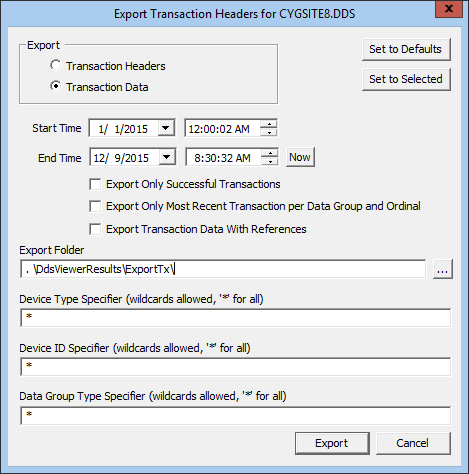
You can use the Export Transactions option to export all transactions for a selected time period for a selected remote device, communication device, import/export device, or data group.
|
| Sample Export Transaction Dialog Box |
The following table lists and describes the various properties of the Export Transaction option dialog box.
| Property | Description |
|---|---|
|
Transaction Headers |
Select this option to view transaction headers information. |
|
Transaction Data |
Select this option to view transaction data information. |
|
Set to Defaults |
Use this button to select transaction headers for all devices and data groups by using wildcards (*). You cannot use this button to select transaction data. |
|
Set to Selected |
Use this button to select the transaction data or headers request to whichever item is highlighted in the Devices and Data Groups for fields. |
|
Start Time |
Use the selectors to choose the correct start time for your report. |
|
End Time |
Use the selectors to choose the correct end time for your report. Now sets the end time to the current time. |
|
Export Only Successful Transactions |
Select to export only successful transactions for the designated time span. |
|
Export Only Most Recent Transaction per Data Group and Ordinal |
Select to export only the latest transaction per data group and ordinal for the designated time span. |
|
Export Transaction Data With References |
Select to export transaction data with reference information for the specified transaction key. |
|
Export Folder |
Designate the destination of your export file. The default is CygNet \Utilities\DdsViewerResults\ExportTx. |
|
Device Type Specifier |
Use this field to indicate the device type. |
|
Device ID Specifier |
Use this field to identify device ID. |
|
Data Group Type Specifier |
Use this field to identify data group type. |
You can transfer ownership of a site or transfer devices with transactions from one Site.Service to another by using the Export Transactions option.
To Export and Import Transactions from One Device to a Different Device
Note: Two transactions cannot have the same timestamp.
To Export and Import Transactions from the Same Device
Note: If you are moving DDS devices to another Site.Service in preparation to transfer ownership of a CygNet server or site, anything within that site that is not specifically in the license agreement for the other party may not function or may function erratically, or may produce invalid/incorrect results. The new owner must obtain a new host activation when acquiring ownership of the Site.Services. To avoid multiple host activations, it is most efficient to place the Site.Services on a "Permanent" machine before activation because a new host activation is required when moving a site to a new machine.
Note: Many services are individually licensed within a license agreement, such as a number of HSS and VHS services. Check with your account manager before purchasing a site with services for which you may not be licensed.
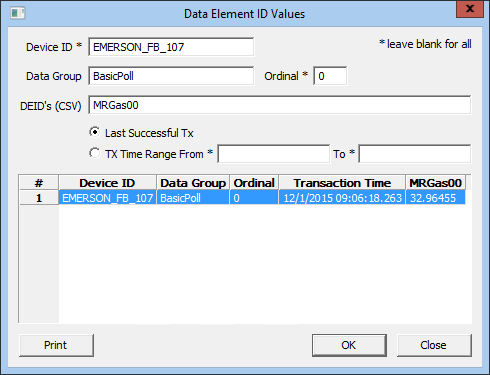
You can use the View DEID Values option to view individual data group element transaction history.
|
| Sample Data Element ID Values Dialog Box |
The following table lists and describes the various properties of the Data Element ID Values dialog box.
| Property | Description |
|---|---|
| Device ID | Indicates the device ID of the device that contains the data group elements you want information about. |
| Data Group | Indicates the data group that contains the data group elements you want information about. |
| Ordinal | Indicates the data group ordinal that contains the data group elements you want information about. |
| DEIDs (CSV) | Lists the data group elements you require information about. Separate with commas. |
| Last Successful Tx | Select this option if you want information about the last successful transaction for the data group elements requested. |
| Tx Time Range | If you are not selecting only the latest successful transactions to view, designate a time span that includes all transactions for the designated data group elements. |
| Click Print to send your results to a printer. |
|
|
|

